Windows 7 does an excellent job of improving battery time and efficiency. But here’s a little tip to get that extra bit out of the battery of your notebook or netbook.
- Go to Power Options by typing it in the start menu search field or via the control panel. It’s also accessible using the system tray Power Options Jump List.
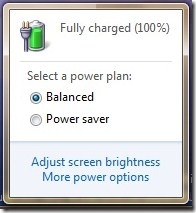
- Whichever is your current plan, you can change it’s plan settings or create a new one if you wish to. For this article, we’ll stick to changing the settings of a current plan. I’ve got Balanced selected as shown in the image.
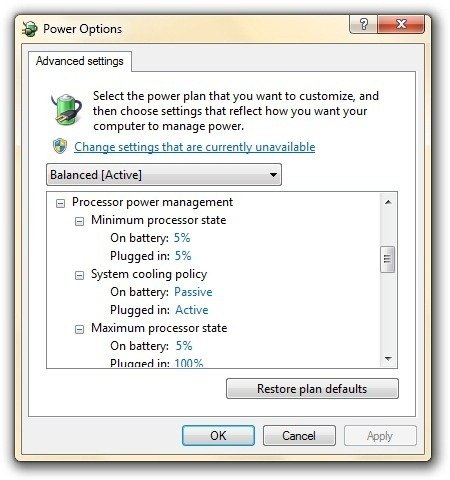
- Scroll down to Processor Power Management, and open its settings. Choose Minimum processor state and change its On Battery value to as low as you want. Keeping it at 0% will give you the best battery time, although at the loss of performance, whereas a higher value will give your lower battery time and better performance.
- Use the same settings in the Maximum processor state On battery field to make sure that the processor runs at the same speed and doesn’t increase it when more power is needed.
This will save you some valuable time on your battery time. It can range from a few minutes to half hour or more, depending on your notebook/netbook’s specifications. Let me know in the comments if this tip helps you and the difference you find in battery time.
This tip is valid for Windows Vista as well.
Windows 7, currently in beta, is scheduled to release this fall for general public. It contains tons of performance optimizations, one of which is improved power management. Users who are testing the beta have already reported better battery timings than what they used to get with Vista.




I though so too, but I needed to verify the info…Thanks