
By Muhammad Ali  |  143 days ago (October 24, 2009) Microsoft

Setup multiple home pages in Internet Explorer

microsoft_ie-logo

Everybody has a certain number of sites such as Facebook, Twitter, YouTube and others, which are always opens whenever one is surfing the web. So, the ideal solution would be to set those pages as home pages. Luckily, Internet Explorer enables you to do that. The tip is a simple one but quite useful. Read on for the steps that enable you to set up multiple home pages in Internet Explorer.

Steps to set up multiple home pages in Internet Explorer

  1. With Internet Explorer open, click on the Tools option or you can alternatively press Alt+T to open the Tools Menu.
  2. In the Tools menu, click on the Internet Options.
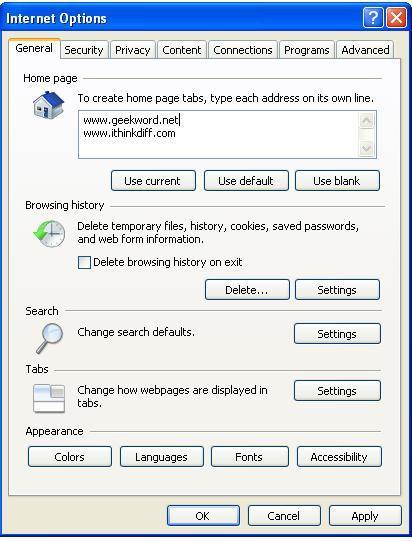
  3. An Internet Option Window will open with the General Tab selected by default. In the home page section type all the links you want to set as your home pages by writing each link in a separate line as shown below
IE8MultipleHomepage1

Subscribe to our RSS feed to stay updated with our latest blog posts!

Join our Facebook fanpage or follow us on Twitter to stay up to date on all things different about Microsoft, Apple and the Internet.


4 Responses to “Setup multiple home pages in Internet Explorer”

  1. Setup multiple home pages in Internet Explorer http://bit.ly/3qxJWp #Microsoft #Windows

  2. How to : Setup multiple home pages in Internet Explorer http://bit.ly/Ej9Cu #InternetExplorer #IE #IE8

  3. [...] This post was mentioned on Twitter by Imran Hussain, Muhammad Ali. Muhammad Ali said: How to : Setup multiple home pages in Internet Explorer http://bit.ly/Ej9Cu #InternetExplorer #IE #IE8 [...]

  4. Social comments and analytics for this post…

    This post was mentioned on Twitter by imhassan: Setup multiple home pages in Internet Explorer http://bit.ly/3qxJWp #Microsoft #Windows…

Leave a Reply