Stellar Data Recovery for iPhone is a Mac and Windows app that scans an iPhone, or an iTunes/Finder backup of an iPhone or iPad, for deleted photos, messages, and app data. The free demo recovers up to 10 photos or videos of 10 MB or less.
The Photos app keeps deleted photos and videos in the Recently Deleted album for 30 days, and the Messages app keeps deleted conversations for a set number of days, as our guide to recovering deleted messages explains. Stellar’s app is for what those options cannot bring back, such as files that are gone from your iPhone but still sit in a backup on your computer.
Free Recovery Is Capped at 10 Photos or Videos
The demo lets you scan your iPhone or a backup and preview what turns up before you buy. A Demo dialog states the free recovery limit on the ‘Recover From’ screen, and you click Continue to pick a source.

Stellar Data Recovery for iPhone Scans Backups
The software scans in two ways. You can connect your iPhone to your computer and scan the phone itself, or you can load a backup made through Finder on a Mac or iTunes on Windows, encrypted or not. The app is meant for data lost to accidental deletion, a failed iOS update, a factory reset, a system crash, or device damage.
The ‘Recover From’ screen shows one tile for iPhone/iPad and one for iTunes. The app uses the iTunes name for the backup tile, so on a Mac you look there for a backup you made in Finder.

You do not need to connect your iPhone to scan a backup. The app asks for the password when the backup is encrypted, and you can browse to a backup that does not appear in its list.
On a Mac with macOS Catalina or later, the software detects Finder backups on its own, and on Windows or an older macOS it reads iTunes backups. You can recover single items from a backup without restoring the whole iPhone. If your iPhone has a locked screen, the scan still works as long as the phone already trusts your computer, and if you forgot the passcode, the app can only help through an iTunes backup.
Direct iCloud recovery is gone, so a backup that only exists in iCloud is out of reach for this app. If iCloud holds your only backup, you restore it through iPhone setup instead, as shown in our guide to restoring from an iCloud backup.
Each of the nine tiles on the ‘What to Recover’ screen has its own checkbox and a one-line description, such as All Photos & Videos under Camera Roll. A Select all box sits above the tiles on the right, so you can scan for everything or untick the types you do not need.
- Camera Roll: photos and videos, including HEIC photos and 4K and 8K video
- Photo Stream: photos synced through iCloud
- Apps Library: data from the apps installed on the iPhone
- Messages & Chats: Messages with their attachments, plus WhatsApp, WeChat, Kik, Viber, Tango and Line chats
- Notes & Reminders: notes with their attachments, plus reminders
- Voice Memos: every voice memo on the iPhone
- Contacts & Call Logs: contacts and call history
- Bookmarks: Safari bookmarks
- Calendar: saved calendar entries

Contacts export as VCF, CSV, or HTML files. You can preview contacts, messages, call history, calendar entries, notes, reminders, and Safari bookmarks before you recover them.
Recovery Takes Four Steps
A progress bar at the bottom of the window tracks the four steps.
- Choose iPhone/iPad or iTunes on the ‘Recover From’ screen.
- Tick the data types you want on the ‘What to Recover’ screen and click Next.
- Connect your iPhone with a cable on the ‘Connect your Device’ screen and click Scan.
- Let the app scan, preview the results, select the items you want, and save them to a folder you pick.
When you connect the iPhone, a ‘Trust This Computer’ prompt appears on its screen, and you need to tap Trust for the app to read the phone. If the app does not list your iPhone, try a different Apple-certified USB cable. Stellar says a standard scan takes a few minutes, and that scans which once took half an hour now often finish in minutes on modern computers.
While the scan runs, the app shows the name, model, and iOS version of the connected iPhone, which read iOS 27.3 on my iPhone 16 Pro Max. The left panel groups 20 data types under Photos & Videos, Messages & Call Log, and Memos & Others, each with a checkbox and a count beside it, so you can recover one type without the others. A red Stop button ends the scan early.
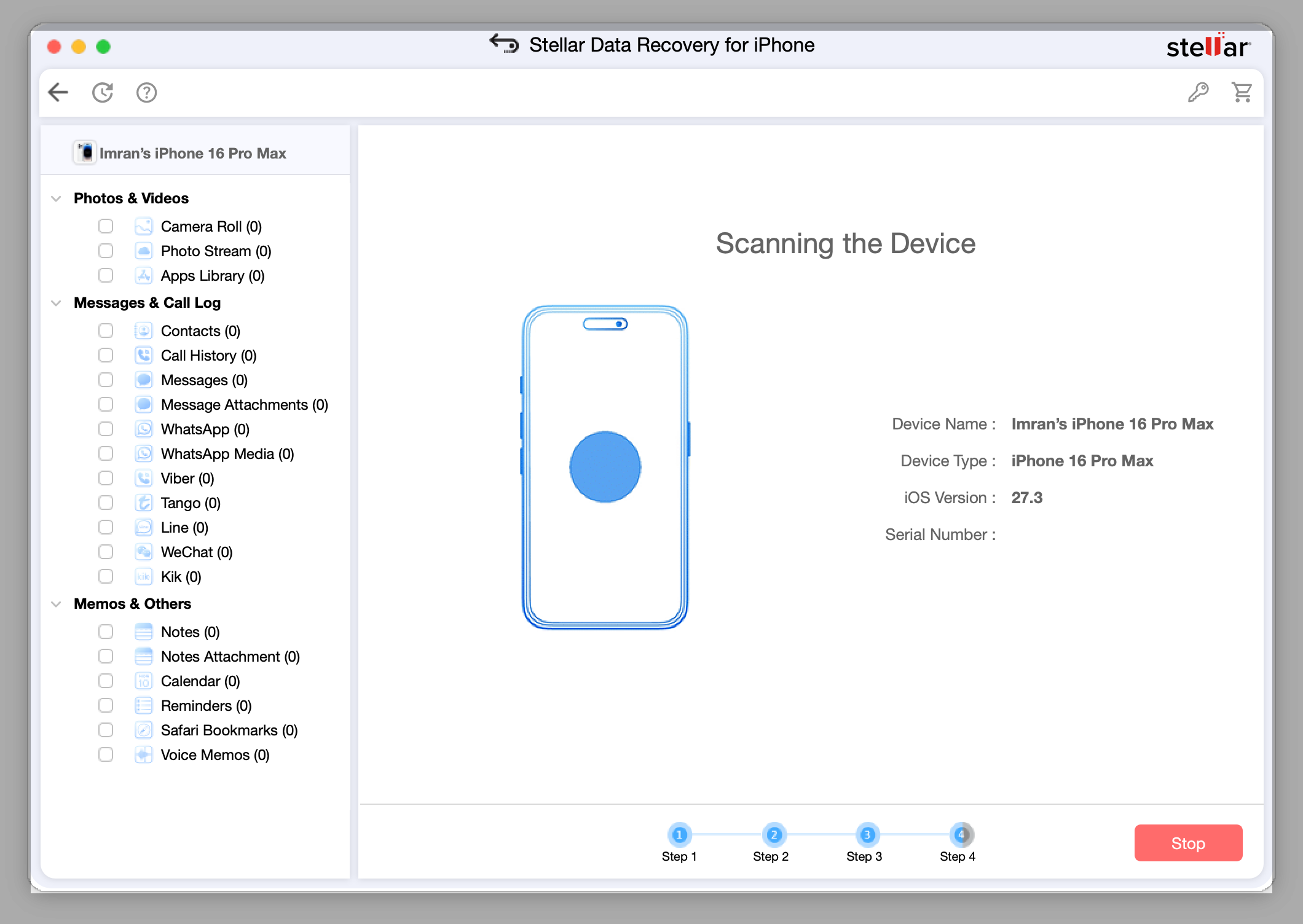
The results list deleted items in red and everything else in black. A direct scan of the iPhone cannot recover deleted items from Camera Roll, Photo Stream, Apps Library, attachments, and Voice Memos, according to Stellar, which recommends Deep Scan when a file you want is missing.
Deep Scan appears at the bottom-left of the results once the normal scan finishes. It searches by file signature on the phone or on an iTunes or Finder backup, and it is the mode that pulls WhatsApp, WeChat, Viber, Tango, Kik, and Line chats, media, and documents.
Deleted data stays recoverable only until iOS overwrites that storage, so stop using the iPhone as soon as you notice the loss. The app needs no jailbreak. Stellar says it does not write to your iPhone during a scan, and that scans finish without crashes and resume if the connection drops.
Standard and Toolkit Differ in Extras
Standard is the recovery app, and Stellar Toolkit for iPhone adds four tools on top of it.
- Permanent erasure that makes data unrecoverable by recovery software
- A wipe for third-party app data and cached storage
- iOS repair for a black screen, crash loops, an iPhone stuck on the Apple logo, or iTunes errors, without deleting your data (most crucial feature)
- Removal of an Apple ID configured on the iPhone
Standard costs $39.99, down from $59.99, and Toolkit costs $49.99, down from $79.99, in a special offer that ends on November 26, 2026. Stellar offers support by phone, chat, and email, and refunds your purchase within 30 days if the software recovers no data.
Activation Needs an Internet Connection
To activate the app, you run the demo, click Activate on the main screen, and enter the activation key that Stellar emails you after you buy. The app checks the key with Stellar’s license server, so your computer needs an internet connection, and a message confirms when activation finishes.
Standard and Toolkit are one-year licenses sold as subscriptions, and Stellar says subscriptions renew automatically unless you cancel or switch to manual renewal before the renewal date. The license includes unlimited recovery, free tech support and updates.
It Runs on macOS 11 Through macOS 27
The Mac version, build 9.0.0.3, supports macOS 11 Big Sur through macOS 27 Golden Gate on Intel Macs and on Apple Silicon Macs from the M1 to the M6. Your Mac needs 4 GB of memory (8 GB is recommended) and 250 MB of free disk space for the installation files. The Windows version, build 9.0.0.2, runs on Windows 11, 10, 8.1, and 8, and it is not mandatory for iTunes to detect your iPhone.
On the iPhone side, the app supports iOS 27, iOS 26, iOS 18, and earlier, and phone series from the iPhone 18 back to much older models. It’s the same with the iPads, supporting the latest iPadOS 27 and earlier. The app installs on your Mac or Windows computer rather than the iPhone, in English, German, French, Italian, or Spanish, and the Tools menu has an Update Wizard that does not work on the demo. The app also recovers data from the iPad, iPad mini, iPad Air, and iPad Pro.
Worth Trying If You Have a Backup
Stellar Data Recovery for iPhone makes the most sense when the files you lost are still in a Finder or iTunes backup on your computer, because the free demo lets you scan and preview them before you pay. On my iPhone 16 Pro Max, the app detected the phone and listed every data type it could scan.
A direct scan of the phone may miss deleted photos until you run Deep Scan. Standard covers recovery, and Toolkit is only worth the extra money if you also want the iOS repair and erasure tools.