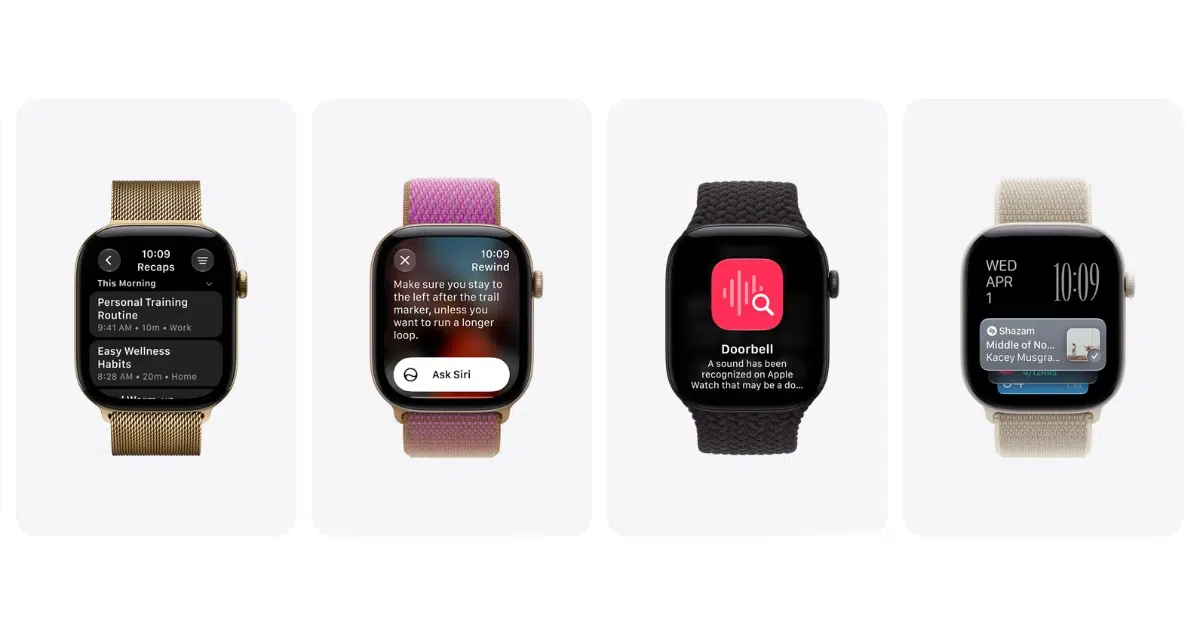
The watchOS 27 home screen no longer opens your full honeycomb or list of apps when you press the Digital Crown. You now see a dynamic app grid with the Siri app in the center and five apps that Apple picks from the ones you use most and used most recently.
The change came with watchOS 27 on September 14, and it also changed what the Digital Crown does when you press it twice. This guide will help you get to the rest of your apps quickly and find the app controls that moved, from switching apps to quitting one.

The watchOS 27 Home Screen Starts With Six Icons
Press the Digital Crown from the watch face and the dynamic app grid opens. Siri always sits in the middle, and the five apps around it change through the day based on how often and how recently you open them.
Apple picks those five apps for you. If the app you want is not there, turn the Digital Crown to scroll to the rest of your apps.
Moving around the new home screen
- Tap an app in the dynamic grid to open it.
- Turn the Digital Crown to see more apps.
- Press the Digital Crown inside an app to go back to the home screen.
- Press the Digital Crown again to go back to the watch face.
Double-Clicking the Crown Changed Too
On watchOS 26 and earlier, a double-click of the Digital Crown jumped between your two most recent apps. In watchOS 27, a double-click does the same thing as a single click, one of several Digital Crown changes that came with the update.
The Apple Watch Series 12 and Apple Watch Ultra 4 use a double press for Live Rewind, which turns the last 15 seconds of speech around you into text. Live Rewind is in testing in the watchOS 27.3 beta.
The App Switcher Moved to the Screen
watchOS 27 removed the App Switcher along with the Digital Crown shortcut. watchOS 27.2 brought it back on October 26 with a new gesture that lives on the screen instead of the crown.
- Open any app.
- Press and hold the bottom of the screen.
- Turn the Digital Crown to scroll through your recent apps.
- Swipe left on an app and tap the X to remove it.
If your Apple Watch is still on watchOS 27.0 or 27.0.1, update to watchOS 27.2 or later to get the gesture. Our App Switcher workarounds help if you cannot update yet.
How to quit an app in watchOS 27
- Open the app you want to quit.
- Press and hold the side button until the sliders appear.
- Press and hold the Digital Crown until the watch face appears.
Quitting an app does not save battery, so you only need to do it when an app stops responding.
A New Gesture and a Siri Watch Face
The Single Tap gesture lets you bring your index finger and thumb together once to select a widget in the Smart Stack. You can use it to pick a widget one-handed when your other hand is busy.
The new Siri Modular face puts a Siri complication on the watch face, along with a rectangular complication that shows the top widget from your Smart Stack. Modular faces also gained new color options in watchOS 27, along with the other watchOS 27 watch face changes.
The dynamic app grid works on every Apple Watch that runs watchOS 27, which means the Apple Watch Series 9 and later, the Apple Watch Ultra 2 and later and the Apple Watch SE 3. The Siri app in the center needs a paired iPhone 15 Pro or newer for Siri AI.