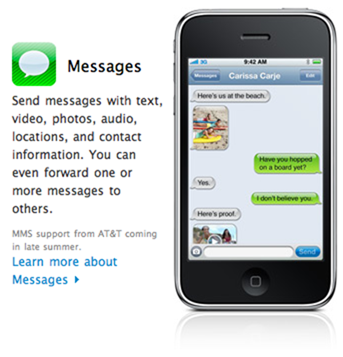
 A lot of people have contacted me that they’ve lost the MMS feature in their iPhone 3G/3GS after updating to iOS 4, jailbroken or not. The problem here seems to be that after upgrading to iOS 4, the MMS service settings are erased. There are a couple of ways to fix this issue.
- Reset Network Settings. Go to Settings > General > [scroll down] Reset > Rest Network Settings
- Reset All Settings. Go to Settings > General > [scroll down] Reset > Rest All Settings
- Check if MMS is turned on in Settings > Messages
- Restore your iPhone using iTunes, and set it up as a new iPhone instead of restoring the backup.
- Check if you have new carrier settings available. Go to Settings > General > About to check.
- Find the MMS settings for your Carrier on Google, and set them up in Settings > General > Network > Cellular Data Network > MMS
These fixes should help you get going again with MMS. If you’re still unable to get it working, let us know in the comments and we’ll try to help you out.
As an alternative, you can always use email or iMessage to send photos and videos to your friends. The benefit of MMS over email or iMessage is that your contact does not need to be on the same phone or have a data package. Most operators allow receiving and sending MMS without subscribing to a data service, so in such instances, it is useful to ensure that MMS works fine on your iPhone.
The above solution has been tested to work fine on iPhone 3GS. If it does not work on your particular iPhone model or cellular operator, let us know in the comments below and we will try our best to help you out.


1 – didnt work
2 – didnt work
3 – i have no choice to turn on/off
4 – ugghh havent tried yet
5 – says “carrier – unavailable”
Same here!
I have iPhone 3G jailbroken.
MMS not working on new iphone 4. Will the “reset all settings” options under general reset voice mail or other internet settings?
not sending or receiving texts / mms. solutions?
In New Zealand we just got an iPhone 4 and 3Gs sending MMS by putting the right settings in the “general – network -cellular data” menu. easy!! and sending between themselves no problem.
Can send regular text messages, but will not send or receive picture messages iphone 4 AT&T