I just came across this on Paul Thurrott’s blog. You can easily block ads using the new InPrivate feature in Internet Explorer 8. All you need is a XML file which contains the addresses of the URLs to block and you’re done. Someone has compiled an xml for InPrivate filtering from the Firefox addon, adblock plus. Here’s a step by step guide to help you set up ad blocking.
- Download the XML here.
- Open up IE 8 and navigate to Tools> Manage Addons
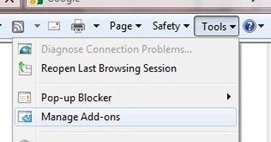

3. Navigate to InPrivate Filtering in the Manage Add-ons window and click import.
4. Navigate to the location of the XML file you just downloaded. You might have to extract the ZIP file to get the XML.

5. And you’re done!

You’ll see a long list of URLs for the InPrivate Filtering tab in Manage add-ons now. If you want to allow ads for a certain blocked URL, just select it and click allow in the Rule information. 





Another option would be to use IE7 Pro. This works fine.