If one AirPod is not working, you’re not alone. Whether you have a left AirPod not working, a right AirPod not working, or your AirPods are only playing in one ear, the issue is usually caused by a dead battery, dirt blocking the speaker, a Bluetooth connection problem, or a temporary software bug rather than a hardware failure.
Before assuming your AirPods are broken, try playing audio from another app or another device to rule out an app-specific issue. Then work through the fixes below in order. Most users can get both AirPods working again in just a few minutes.

Check That Both AirPods Are Charged Properly
The most common reason one AirPod stops working is because its battery has run out.
Place both AirPods in the charging case, close the lid for at least 30 seconds, then open it near your iPhone. A battery status popup should appear showing the charge level of each AirPod and the charging case.

You can also check battery levels from the Batteries widget on your iPhone, iPad, or Mac. Even if one AirPod appears connected, it may not have charged properly. If one earbud shows a much lower battery percentage than the other, clean the charging contacts and let both AirPods charge for at least 15 minutes before testing again.

Clean Your AirPods and Charging Contacts
Earwax, dust, and pocket lint can block the speaker grille or prevent an AirPod from charging properly.
Inspect both AirPods carefully. If you notice debris, use a soft, dry, lint-free cloth along with a clean, dry, soft-bristled brush to remove buildup. If needed, you can gently clean stubborn dirt with a dry cotton swab.
Avoid inserting sharp objects into the speaker mesh or using excessive moisture, as doing so could damage your AirPods.
Make Sure Audio Balance Is Centered
Sometimes the problem isn’t the AirPod at all. The audio balance may have been accidentally shifted completely to one side.
On your iPhone:
- Open Settings.
- Tap Accessibility.
- Tap Audio & Visual.
- Under Balance, make sure the slider is centered.

If the slider is all the way left or right, only one AirPod will play audio.
Put Both AirPods Back in the Charging Case
A simple reconnect often fixes temporary communication issues between the earbuds.

Place both AirPods in the charging case, close the lid, wait about 30 seconds, then remove them together and reconnect them to your iPhone, iPad, or Mac.
Disconnect and Reconnect Your AirPods
Bluetooth pairing issues can sometimes prevent one AirPod from working correctly.
Open Settings > Bluetooth, tap the Info (i) button next to your AirPods, then tap Disconnect. Reconnect your AirPods and test them again.
If the issue continues, move on to the next step.
Forget and Pair Your AirPods Again
Resetting the Bluetooth connection often resolves audio issues.
- Open Settings > Bluetooth.
- Tap the Info (i) button next to your AirPods.
- Tap Forget This Device and confirm.
- Place both AirPods in the charging case and close the lid for about 30 seconds.
- Open the lid.
- Press and hold the setup button on the back of the charging case until the status light flashes white.
- Bring the case close to your iPhone and follow the on-screen pairing instructions.

Once your AirPods reconnect, check whether both earbuds are playing audio again.
Restart Your iPhone, iPad, or Mac
A temporary software bug can sometimes interfere with Bluetooth audio.
Restart the device you’re using with your AirPods, reconnect them, and check whether the problem has been resolved.
Update Your Device
AirPods firmware updates install automatically while your AirPods are charging and connected to a compatible Apple device. However, you should also make sure your iPhone, iPad, or Mac is running the latest available software.
On iPhone or iPad, go to Settings > General > Software Update and install any available updates.
Keeping your devices up to date can fix Bluetooth bugs and improve compatibility with AirPods.
Factory Reset Your AirPods
If none of the previous solutions worked, perform a full reset.
- Place both AirPods in the charging case and close the lid for 30 seconds.
- Open the lid.
- On your iPhone, go to Settings > Bluetooth and forget your AirPods.
- Press and hold the setup button on the back of the charging case until the status light flashes amber, then white.
- Pair your AirPods again.
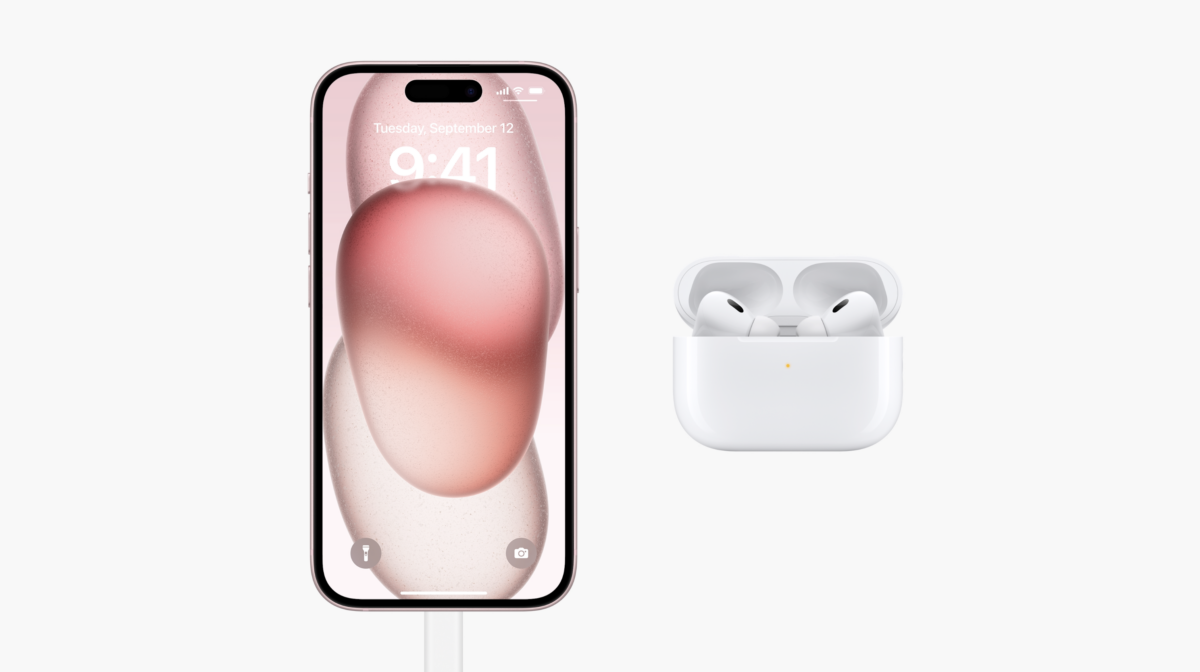
A factory reset clears pairing data and resolves many persistent connection and synchronization problems.
Test Your AirPods on Another Device
Pair your AirPods with another iPhone, iPad, Mac, or another Bluetooth device.
If both AirPods work normally, the problem is likely with your original device.
If the same left or right AirPod still doesn’t produce sound, the issue is probably with the AirPod itself.
Contact Apple Support
If one AirPod still isn’t working after trying every solution above, it may have developed a hardware fault.
Apple can run diagnostics to determine whether the AirPod, charging case, or battery needs service. If your AirPods are covered by Apple’s Limited Warranty or AppleCare+, you may be eligible for a repair or replacement depending on the cause of the problem.
Why Is One AirPod Not Working?
Most cases are caused by one of the following:
- One AirPod has a depleted battery.
- Dirt or debris is preventing charging or blocking the speaker.
- A Bluetooth pairing issue has interrupted the connection.
- The audio balance is shifted entirely to one side.
- A temporary software bug is affecting playback.
- The AirPod has developed a hardware fault.
In most cases, one AirPod not working is caused by a charging, pairing, or software issue rather than a hardware failure. By checking the battery, cleaning both AirPods, reconnecting them, and performing a factory reset if needed, you can usually restore audio without replacing either earbud.
If the left or right AirPod still doesn’t produce sound after trying every fix in this guide, contact Apple Support. They can determine whether the AirPod or charging case needs repair or replacement.


