If your iPhone started having Wi-Fi issues after updating to iOS 27, you’re not alone. Some users report slow speeds, random disconnects, or networks that refuse to connect after installing a major iOS update. In many cases, the problem is caused by a temporary software bug, outdated network settings, or router compatibility issues rather than faulty hardware.
The good news is that most Wi-Fi problems can be resolved in just a few minutes. This guide covers the most common Wi-Fi issues on iOS 27 and the best ways to fix them before contacting Apple Support.

Common Wi-Fi Problems on iOS 27
The solutions below can help if your iPhone is experiencing any of these problems:
- Wi-Fi won’t turn on
- Wi-Fi keeps disconnecting
- iPhone won’t join a Wi-Fi network
- Wi-Fi is connected but there’s no internet
- Internet feels slower than before updating
- Apps won’t load over Wi-Fi
- The network disappears from the list
- Wi-Fi randomly drops while using your iPhone
1. Toggle Wi-Fi Off and Back On
Sometimes the simplest fix is enough.
- Open Settings > Wi-Fi
- Turn Wi-Fi off
- Wait about 10 seconds
- Turn it back on
- Reconnect to your network

Avoid using Control Center for this step, as it temporarily disconnects Wi-Fi instead of fully disabling it.
2. Restart Your iPhone
A restart can clear temporary networking glitches introduced after installing iOS 27.
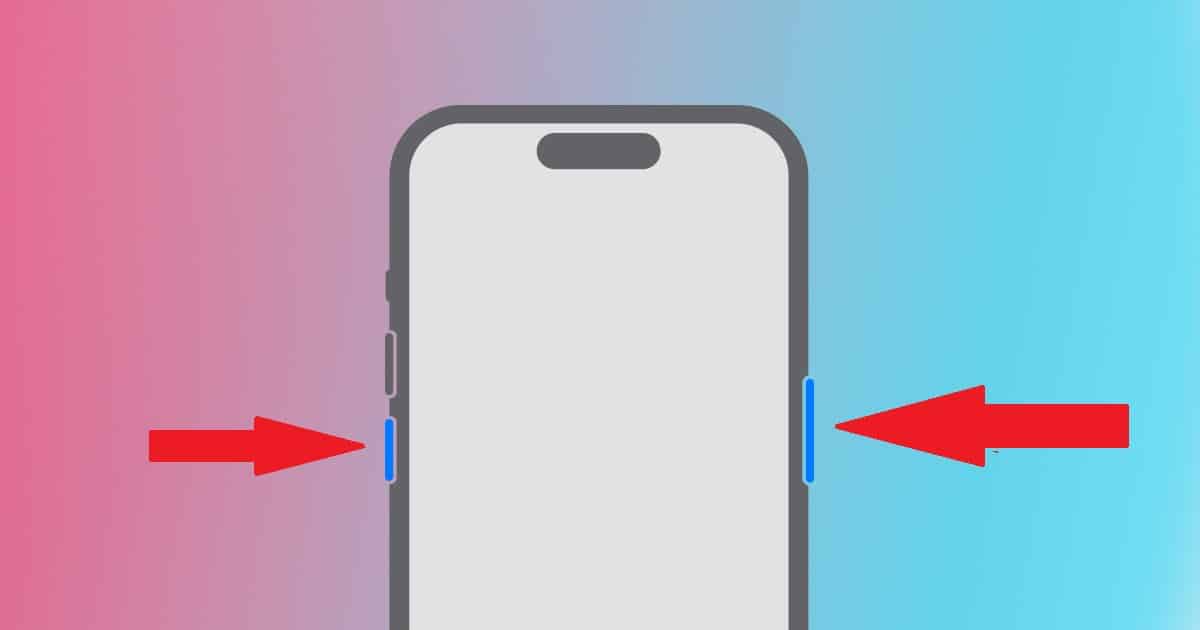
- Press and hold the Side button and either Volume button
- Drag the power slider
- Wait 30 seconds
- Turn your iPhone back on

3. Restart Your Router
If every device is struggling, the router may be the problem.
- Unplug your router for about 30 seconds
- Plug it back in
- Wait until the Wi-Fi network returns
- Reconnect your iPhone
4. Forget the Wi-Fi Network
If your iPhone refuses to connect or repeatedly asks for the Wi-Fi password, removing the saved network and reconnecting often fixes corrupted connection data.
- Open Settings > Wi-Fi
- Tap the ⓘ next to your network
- Tap Forget This Network
- Rejoin using your password

5. Disable VPNs
Some VPN apps don’t work properly immediately after major iOS updates.
Try disconnecting your VPN temporarily.
- Open Settings > VPN
- Turn the VPN off
- Test your Wi-Fi connection again
If that fixes the issue, update the VPN app before using it again.
6. Check Low Data Mode
Low Data Mode can restrict background activity and make Wi-Fi seem slower.
- Open Settings > Wi-Fi
- Tap your network
- Turn Low Data Mode off
7. Turn Off Private Wi-Fi Address
Private Wi-Fi Address improves privacy by giving your iPhone a randomized MAC address on Wi-Fi networks. However, some older routers don’t handle this feature well.
- Open Settings > Wi-Fi
- Tap ⓘ
- Disable Private Wi-Fi Address
- Reconnect

If your network supports it without issues, you can leave it enabled for better privacy.
8. Disable Limit IP Address Tracking
This feature helps improve privacy by limiting how your IP address is exposed, but some networks may experience compatibility issues.
- Open Settings > Wi-Fi
- Tap ⓘ
- Turn off Limit IP Address Tracking
- Test the connection
9. Install the Latest iOS 27 Update
Apple often fixes networking bugs in follow-up updates.
Go to:
Settings > General > Software Update
If an update is available, install it.
10. Reset Network Settings
Only do this if nothing else works.
- Open Settings > General > Transfer or Reset iPhone > Reset
- Tap Reset Network Settings

Keep in mind that this removes:
- Saved Wi-Fi networks
- Wi-Fi passwords
- Bluetooth pairings
- VPN configurations
- Network preferences
You’ll need to reconnect your devices afterward.
What If Only One Wi-Fi Network Doesn’t Work?
If your iPhone connects normally everywhere except one specific network, the router is usually the problem.
Try restarting the router, updating its firmware, or removing and recreating the wireless network.
If other phones also struggle to connect, the issue almost certainly isn’t related to iOS 27.
What If Wi-Fi Is Connected but Nothing Loads?
Seeing the Wi-Fi icon doesn’t always mean your internet connection is working.
Open Safari and visit a few different websites. If nothing loads, try switching to cellular data.
If cellular works but Wi-Fi doesn’t, restart your router or check whether your internet provider is experiencing an outage.
Public Wi-Fi networks may also require you to sign in through a captive portal before internet access becomes available.
How to Tell if It’s an iOS 27 Bug
Sometimes the problem isn’t your settings at all.
It may be an iOS 27 bug if:
- The issue started immediately after updating.
- Multiple users are reporting the same problem.
- Your router works normally with other devices.
- Restarting temporarily fixes the issue before it returns.
If that’s the case, make sure you’re running the latest version of iOS 27, as Apple often addresses networking bugs in software updates.
When to Contact Apple
If you’ve tried every solution above and your iPhone still won’t connect to Wi-Fi, the issue could be hardware-related.
You should contact Apple Support if:
- Wi-Fi won’t turn on at all.
- The Wi-Fi button is permanently greyed out.
- Your iPhone can’t detect any wireless networks.
- The problem continues after resetting network settings and updating iOS.
Apple can run diagnostics to determine whether the issue is caused by hardware or software.


