With iOS 15, Apple introduced iCloud Data Recovery to revive your iCloud account on iPhone and iPad. This is useful if you ever lose your Apple ID password and get locked out of your account unable to access your data or service subscriptions. iCloud Data Recovery allows you to set a recovery contact for your Apple ID account or create a recovery key in iOS 15/iPadOS 15. In this guide, we will be going through the steps of setting a recovery contact for your device.

Learn how to set a recovery contact for iCloud in iOS 15
Note that users you want to add as recovery contacts must be using an Apple device running iOS 15/iPadOS 15. In addition, your recovery contact must have a passcode on their device and two-factor authentication enabled for their iCloud account.
- Launch Settings app on your iPhone or iPad.
- Tap on your Apple ID profile at the top.
- Next, tap on Password & Security > Account Recovery.
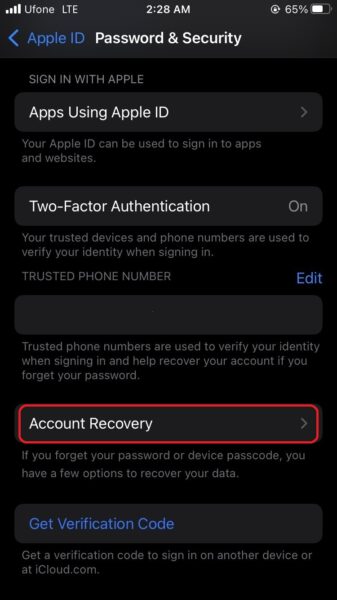
- Tap on Add Recovery Contact.
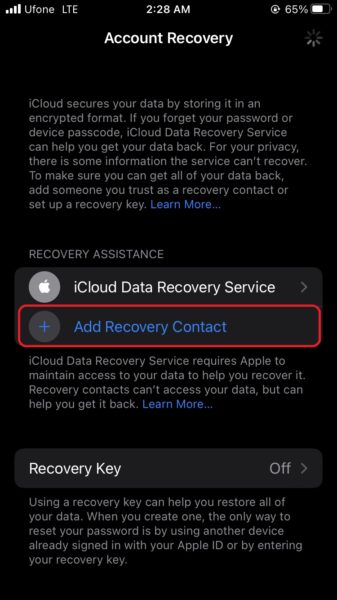
- Tap Next. Your iPhone will now let you send the selected contacts a message informing them that they are your recovery contact.
- Tap Send > Done to finish.


We hope this guide helped you learn how to set a recovery contact for iCloud in iOS 15. If you have any questions, let us know in the comments below.
Read more:
- How to record ProRes video on iPhone 13 Pro and iPhone 13 Pro Max
- How to easily use the App Switcher for Split View on iPadOS 15
- How to clear cookies from Safari without deleting your browsing history on iPhone & iPad
- How to edit the date, time, or location of photos in iOS 15
- How to use iOS 15 portrait video and audio effects in any app including Instagram, Snapchat and TikTok
- How to use an email instead of a phone number for iMessage on iPhone & iPad
- How to SharePlay music, screen, TikTok and more on iPhone and iPad
- How to reduce the size of your iCloud backup on iPhone and iPad
- How to transfer data from your old iPhone to a new iPhone 13 without using a backup
- How to use Screen Time to set a time limit for websites on iPhone and iPad


