An iPhone that will not turn on can be caused by a drained battery, a frozen system, a failed startup, or a hardware problem. In some cases, the iPhone is still running but the display remains completely black.
The troubleshooting steps depend on what your iPhone is doing. If it shows no signs of power, start with charging. If it vibrates or makes sounds but the screen stays black, focus on the display and restart process. If it gets stuck on the Apple logo, recovery mode may be necessary.

Check If Your iPhone Is Actually Running
A black screen does not always mean that the iPhone is turned off.
Press the Side button once and listen for sounds or check whether the phone vibrates. You can also call the iPhone from another phone to see whether it rings or vibrates.
If the iPhone responds to calls, notifications, or other interactions but the screen remains black, the device may still be powered on. In that case, the problem could be related to the display rather than the battery.
Charge Your iPhone
If your iPhone shows no signs of life, start by charging it.
Connect it to a working power adapter and cable and leave it charging for at least 30 minutes. If possible, try a different cable, power adapter, or wall outlet.
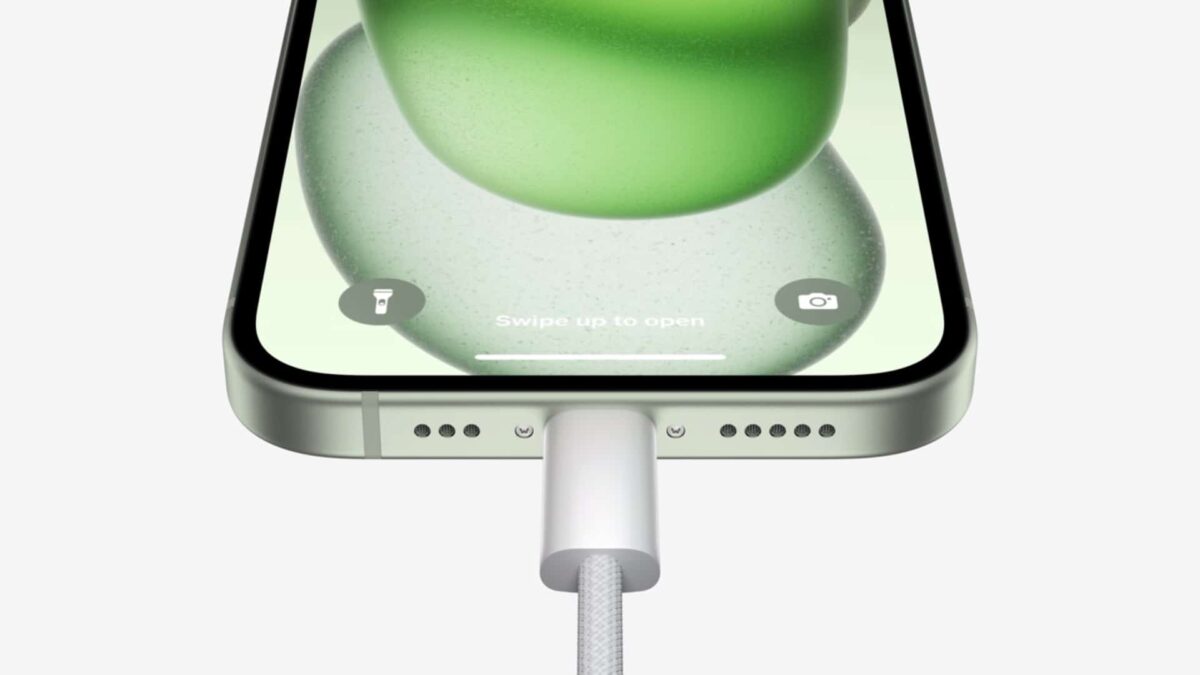
Check the charging port for visible debris that could prevent the cable from making proper contact. Do not insert objects into the port to clean it.
If the battery was completely depleted, the iPhone may need some time before the charging screen appears.
Try a Force Restart
If the iPhone has power but is frozen or stuck on a black screen, a force restart can restart the system without deleting your data.
For an iPhone 8 or later, including iPhone SE (2nd generation and later):
- Quickly press and release the Volume Up button.
- Quickly press and release the Volume Down button.
- Press and hold the Side button.
- Keep holding the Side button until the Apple logo appears.

The Apple logo may take longer than expected to appear. Continue holding the Side button rather than releasing it too early.
A force restart does not erase your photos, apps, messages, or other personal data. Check out our in-depth guide on how to force restart your iPhone here.
Force Restart an Older iPhone
The force restart combination is different on older models.
For an iPhone 7 or iPhone 7 Plus, press and hold the Side button and Volume Down button at the same time until the Apple logo appears.

For an iPhone 6s or earlier, including the original iPhone SE, press and hold the Home button and Side or Top button together until the Apple logo appears.
Once the Apple logo appears, release the buttons and allow the iPhone to start normally.
iPhone Won’t Turn On After Charging
If the iPhone still shows a black screen after charging, try another charging setup before assuming the device has failed.
Use a different power adapter, cable, and outlet if available. Then leave the iPhone connected to power and try the appropriate force restart.
If the iPhone remains completely unresponsive after using known-working charging equipment, connect it to a computer to see whether it is recognized.
Check If the Screen Is the Problem
If the iPhone vibrates, rings, or makes notification sounds but never displays an image, the device itself may still be working.
Try the force restart procedure for your model. If the iPhone continues responding but the display stays black, the problem may involve the screen or another internal component.
A recent drop, cracked display, or liquid exposure can also cause a black screen.
Disconnect Accessories
Remove any connected USB-C or Lightning accessories from the iPhone.
A damaged cable, adapter, or accessory can sometimes interfere with charging or cause unexpected behavior. After disconnecting everything, connect the iPhone directly to a known-working power source.
If the iPhone starts normally without an accessory connected, test the accessories individually to identify which one may be causing the problem.
iPhone Stuck on the Apple Logo
If the Apple logo appears but the iPhone never reaches the Lock Screen, it may be stuck during startup.
Start with a force restart. If the iPhone repeatedly returns to the Apple logo or remains there for an extended period, connect it to a Mac or Windows PC and use recovery mode.
When recovery mode offers the option to update or restore the iPhone, try Update first. This attempts to reinstall iOS while keeping your personal data.
iPhone Stuck on the Charging Screen
If the iPhone shows a battery or charging symbol but does not start, leave it connected to power for at least 30 minutes.
Try another cable and power adapter if the charging screen does not change. Then perform the appropriate force restart.
If the iPhone repeatedly returns to the charging screen or never reaches the Lock Screen, recovery mode may be the next step.
Use Recovery Mode If Your iPhone Still Won’t Start
Recovery mode can help when an iPhone has a software problem that prevents it from starting normally.
You need a Mac or Windows PC and a compatible USB cable. Connect the iPhone to the computer, then use the force restart button sequence for your model while keeping the required button pressed until the recovery mode screen appears.
On a Mac, open Finder and select the iPhone. On Windows, use the Apple Devices app when available.
The computer should provide options to Update or Restore the iPhone. Choose Update first if available.
Update vs. Restore in Recovery Mode
The difference between these two options is important.
- Update attempts to reinstall iOS without erasing your personal data. It is the option to try first when the iPhone will not start because of a software problem.
- Restore reinstalls iOS and erases the content and settings stored on the iPhone. If you have a recent backup, you can restore your information afterward.
Because Restore erases the device, it should generally be used only when other recovery options have not fixed the problem.
Check Whether a Computer Recognizes Your iPhone
Connect the iPhone to a Mac or Windows PC and see whether it appears in Finder or the Apple Devices app.
If the computer recognizes the iPhone even though the screen remains black, the device may still be operating. This can point toward a display or startup problem rather than a completely dead phone.
If the computer does not recognize it normally, try recovery mode and see whether the computer detects the iPhone there.
What If Your iPhone Was Dropped or Got Wet?
Physical damage changes the troubleshooting approach.
If the screen went black immediately after the iPhone was dropped, the display or internal hardware may have been damaged. Repeated force restarts are unlikely to fix physical damage.
If the iPhone was exposed to liquid, disconnect it from power and do not attempt to charge it while it is wet. Do not use external heat to dry the device.
If the iPhone does not recover after safe handling, arrange for professional inspection.
When to Contact Apple Support
If your iPhone remains completely unresponsive after charging, force restarting, and attempting recovery mode, it may require service.
You should also seek professional help if the iPhone has visible physical damage, suffered liquid exposure, becomes unusually hot, or shows signs of a battery problem.
Before contacting Apple or an authorized service provider, note your iPhone model, iOS version if known, what happened before the problem started, and whether the device shows any signs of power.
Quick Fixes for an iPhone That Won’t Turn On
If your iPhone has a black or dead screen, work through these steps in order:
- Check whether the iPhone responds to calls, sounds, or vibrations.
- Charge it with a known-working cable and power adapter for at least 30 minutes.
- Try a different cable, adapter, or outlet.
- Disconnect connected accessories.
- Perform the correct force restart for your iPhone model.
- Check whether the screen comes back on.
- Connect the iPhone to a Mac or Windows PC.
- Use recovery mode if the iPhone still will not start.
- Choose Update before Restore when both options are available.
- Contact Apple or an authorized service provider if the iPhone remains unresponsive.


1 comment