If your iPhone is frozen, the screen is unresponsive, an app has completely locked up, or the device won’t respond to normal button presses, a force restart can often get it working again. Unlike a normal restart, a force restart works even when you can’t interact with the screen or power off the iPhone normally.
The button combination depends on your iPhone model. The steps below cover every iPhone, including the iPhone SE (1st, 2nd and 3rd generation), along with what to do if your iPhone still won’t turn on afterward.

Every iPhone Uses One of Three Force Restart Button Sequences
A force restart does not erase your iPhone. It doesn’t remove your photos, apps, messages or other personal data, and you don’t need to connect the iPhone to a computer to do it. The entire process uses the physical buttons on the device.
iPhone 8 and Later
This method applies to the iPhone 8 and iPhone 8 Plus, every iPhone X and later model, and the iPhone SE (2nd generation) and iPhone SE (3rd generation). Model-specific guides are available for the iPhone 18 Pro and iPhone 18 Pro Max, the iPhone 15 and iPhone 15 Pro, the iPhone 14 and iPhone 14 Pro, the iPhone 13, the iPhone 12 and the iPhone SE (3rd generation).
- Quickly press and release the Volume Up button.
- Quickly press and release the Volume Down button.
- Press and hold the Side button.
- Keep holding the Side button even if the screen remains black.
- Release the Side button when the Apple logo appears.
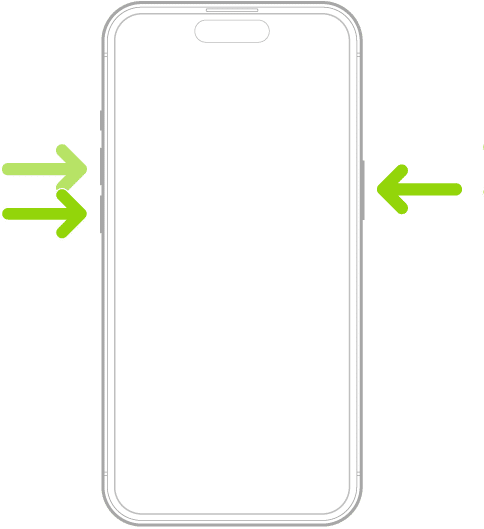
The Apple logo can take more than 10 seconds to appear, so don’t release the Side button too quickly.
iPhone 7 and iPhone 7 Plus
The iPhone 7 and iPhone 7 Plus use a different combination because they have a physical Home button.
- Press and hold the Side button and Volume Down button at the same time.
- Keep holding both buttons.
- Release them when the Apple logo appears.

This can take longer than 10 seconds, so keep holding the buttons if nothing happens immediately.
iPhone 6s and Earlier
This method applies to the iPhone 6s, iPhone 6s Plus, iPhone SE (1st generation) and iPhone 6 and earlier models.
- Press and hold the Home button and the Side button at the same time.
- On models with a Top button instead of a Side button, press and hold the Home and Top buttons.
- Keep holding both buttons.
- Release them when the Apple logo appears.
A force restart is useful when the touchscreen is frozen, an app has stopped responding and you can’t leave it, the buttons aren’t responding normally, or the iPhone is stuck on a black screen, stuck during startup, or frozen after an iOS update. It also helps when you can’t shut the iPhone down normally.
A Force Restart Comes Before Recovery Mode and DFU Mode
Force restart, recovery mode and DFU mode are often confused, but they serve different purposes.
| Method | What It Does | Erases Data? |
|---|---|---|
| Force Restart | Forces the iPhone to shut down and restart | No |
| Recovery Mode | Lets a computer update or restore iOS | Update: No, Restore: Yes |
| DFU Mode | Provides a deeper recovery state for advanced troubleshooting | Not by itself |
A force restart should usually be your first step when an iPhone is frozen or unresponsive, since it doesn’t require restoring iOS or connecting to a computer. Recovery mode is the next option when the iPhone won’t start normally, is stuck during startup, or isn’t being recognized properly by a computer.
DFU mode is a more advanced recovery method for specific situations where standard recovery isn’t enough. If you only need to restart a frozen iPhone, you do not need recovery mode or DFU mode.
An iPhone That Stays Black After a Force Restart Needs Charging Before Anything Else
If the force restart doesn’t work, don’t assume the iPhone needs to be restored. Connect it to a charger and charge it for one hour before trying the force restart again. If a low-battery icon appears, charge it for 30 minutes or until it starts.
If the screen is still black, try another charging cable, power adapter or outlet, and check the charging port for visible debris. A faulty cable or an empty battery can make an otherwise working iPhone appear completely unresponsive. Also confirm you are using the sequence for your model, since the iPhone 8 procedure is different from the iPhone 7, and the iPhone SE (1st generation) uses the older Home button combination.
If the Apple logo appears but the iPhone never finishes starting, give it some time, and see how to fix an iPhone stuck on the Apple logo if it remains stuck. If the Apple logo appears with a progress bar that hasn’t moved for at least an hour, connect the iPhone to a computer and use recovery mode. When you’re given the choice, pick Update before Restore, because Restore erases the iPhone.
A connect-to-computer screen means the iPhone is already in recovery mode, so connect it to a Mac or PC and follow the options shown by Finder or the Apple Devices app. If the iPhone won’t charge, isn’t detected by a computer, has physical damage, or stays completely black after charging and a force restart, it may have a hardware problem and require service.


5 comments