With iOS, Apple introduced a compact call interface that shows calls as a small banner at the top of the display when you are using your iPhone. Prior to this, when you got a call, your whole display would be blocked with full-screen caller ID. While full-screen caller ID takes up the whole display, it does ensure you never miss a call.
If you prefer the old full-screen caller ID in place of the banner style because you are missing calls, you can switch between the two pretty easily. Here’s how to enable full-screen caller ID on iPhone in a few simple steps.
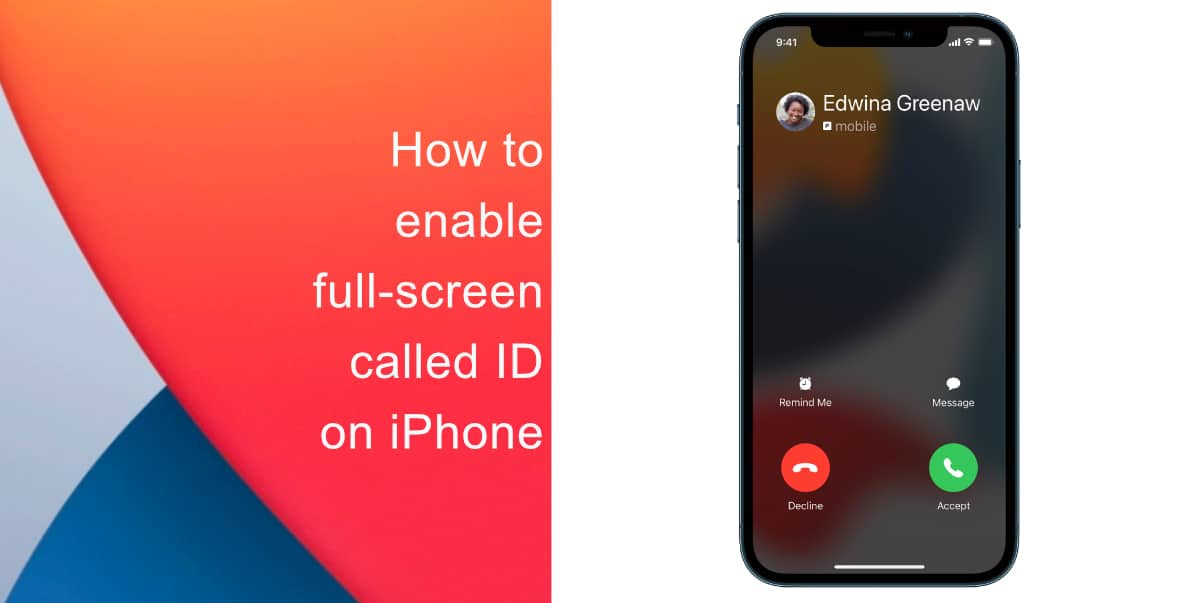
Learn how to enable full-screen caller ID on iPhone
- Launch the Settings app from the Home screen on your iPhone.
- Go to Phone.
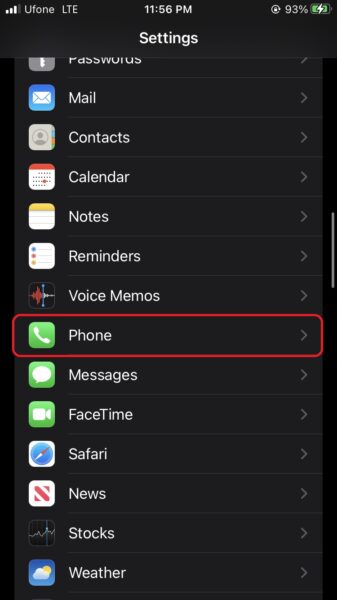
- Tap on Incoming Calls.
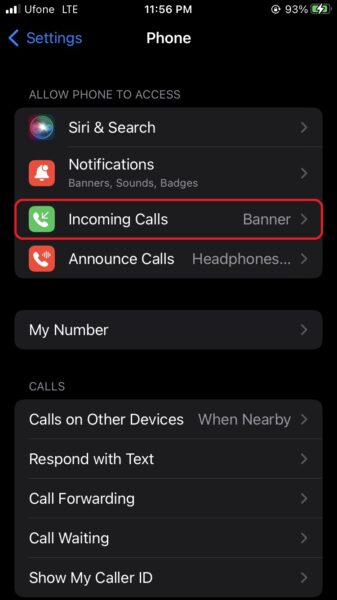
- Lastly, tap Full Screen.

Now, any incoming calls will feature full-screen caller ID with full-screen contact pictures. Note that FaceTime and calls from other apps will also appear on the full screen instead of a banner.
The one disadvantage of this is that you cannot dismiss an incoming call by swiping it away like you could with a banner call. However, you can still use the volume buttons on your iPhone to silence a call or double-tap the power button to decline it.
We hope this guide helped you learn how to enable full-screen caller ID on your iPhone. If you have any questions, let us know in the comments below.
Read more:
- How to easily enable “Conversation Boost” on AirPods 2, AirPods Pro, and AirPods Max
- How to record ProRes video on iPhone 13 Pro and iPhone 13 Pro Max
- How to send expiring emails using Confidential mode in Gmail on iPhone and iPad
- How to set Gmail to delete Instead of archive in stock Mail app on iPhone & iPad
- How to clear cookies from Safari without deleting your browsing history on iPhone & iPad
- How to automatically and manually send text messages instead of iMessages on iPhone
- How to clear cookies from Safari without deleting your browsing history on iPhone & iPad
- How to use an email instead of a phone number for iMessage on iPhone & iPad
- How to turn on rain and snow notifications for your current location on iPhone


