Picture-in-Picture allows you to play videos from one app while you go on about using your iPhone as usual. The video will continue to play in a small thumbnail window, allowing two apps to multitask on your iPhone.
While the ability to view videos in a floating window is great if you are a multitasker, like if you are texting someone or browsing the web. However, it can get annoying if you want to close the app and do something else but the video you were watching automatically starts playing in PiP mode. Thankfully, there is a way to disable this. Here’s how to stop entering Picture-in-Picture automatically on iPhone.
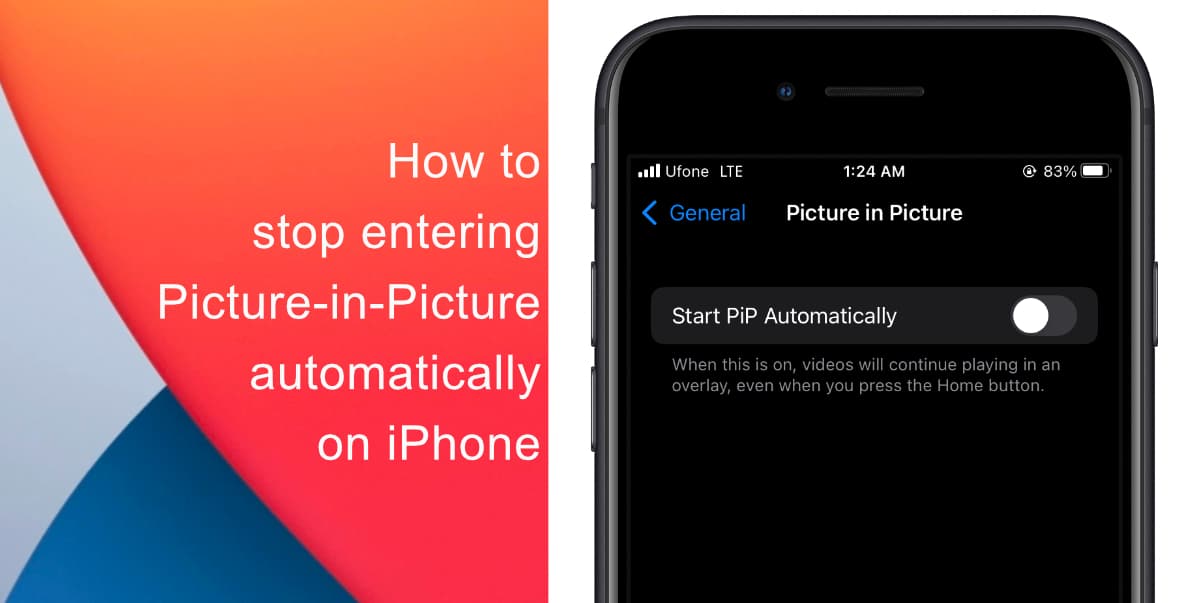
Learn how to stop entering Picture-in-Picture automatically on iPhone
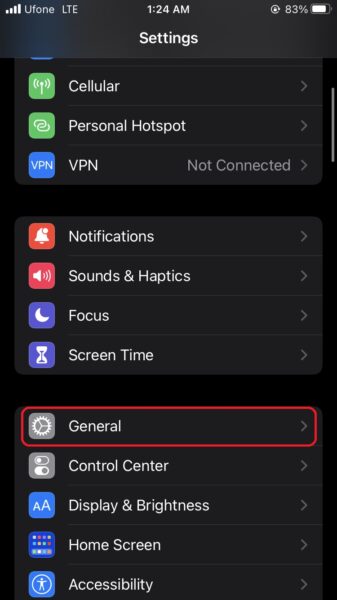
- Launch Settings from your home screen.
- In the settings menu, scroll down and tap on General.
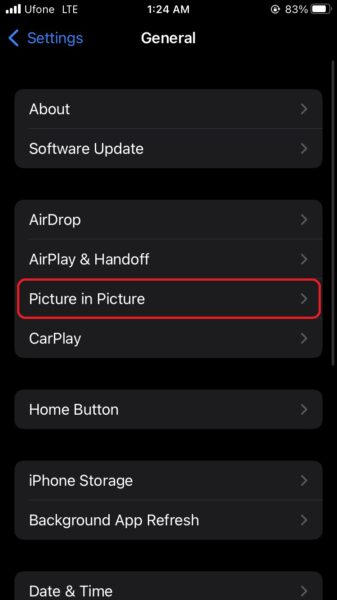
- Next, tap on Picture in Picture.
- Finally, tap on the toggle to prevent your iPhone from starting PiP automatically.

From now on, the only want to enter Picture in Picture mode on your iPhone would be by tapping on the PiP icon in the playback menu.
We hope this guide helped you learn how to stop entering Picture-in-Picture automatically on iPhone. If you have any questions, let us know in the comments below.
Read more:
- How to record ProRes video on iPhone 13 Pro and iPhone 13 Pro Max
- How to easily use the App Switcher for Split View on iPadOS 15
- How to clear cookies from Safari without deleting your browsing history on iPhone & iPad
- How to edit the date, time, or location of photos in iOS 15
- How to use iOS 15 portrait video and audio effects in any app including Instagram, Snapchat and TikTok
- How to use an email instead of a phone number for iMessage on iPhone & iPad
- How to SharePlay music, screen, TikTok and more on iPhone and iPad
- How to reduce the size of your iCloud backup on iPhone and iPad
- How to transfer data from your old iPhone to a new iPhone 13 without using a backup
- How to use Screen Time to set a time limit for websites on iPhone and iPad