If you work from home or attend school online, you might spend a lot of time going in and out of Zoom meetings. And you may have experienced some awkward moments when someone’s microphone is unmuted when they join a Zoom meeting and you can hear background noises or something personal.
To ensure this never happens to you, there is a setting you can toggle in Zoom to automatically mute your microphone when you are joining a meeting. This is helpful because it prevents you from having to constantly toggle mute as soon as you join a meeting or if you are in a noisy environment. It is a nice feature to make working from home a little smoother. Here’s how to automatically mute your microphone when joining a Zoom meeting on iPhone and iPad
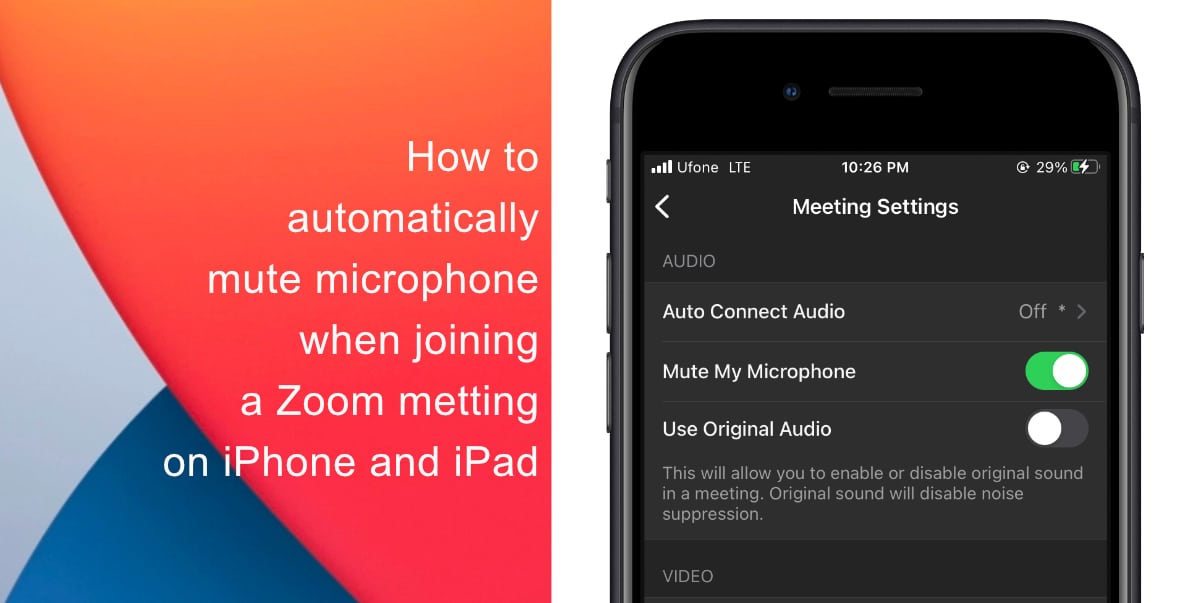
Learn how to automatically mute your microphone when joining a Zoom meeting on iPhone and iPad
- Open the Zoom app on your iPhone or iPad.
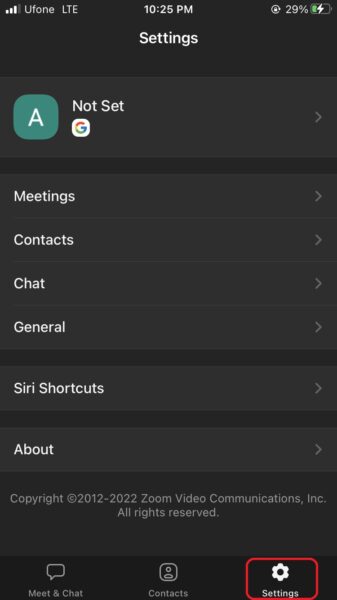
- Click the gear icon at the bottom of the screen to access Settings.
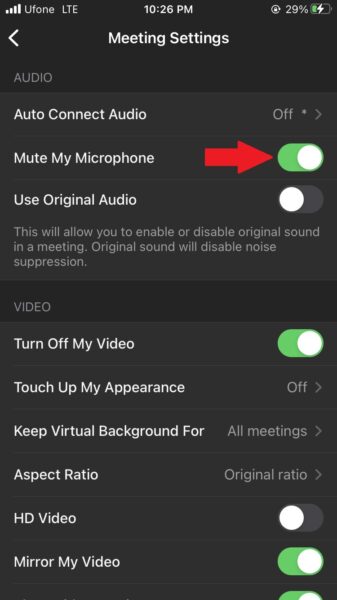
- Finally, toggle the switch for “Mute microphone when joining a meeting” under Audio settings.
We hope this guide helped you learn how to automatically mute your microphone when joining a Zoom meeting on iPhone and iPad. If you have any questions, let us know in the comments below.
Read more:
- How to record ProRes video on iPhone 13 Pro and iPhone 13 Pro Max
- How to set Gmail to delete Instead of archive in stock Mail app on iPhone & iPad
- How to clear cookies from Safari without deleting your browsing history on iPhone & iPad
- How to automatically and manually send text messages instead of iMessages on iPhone
- How to clear cookies from Safari without deleting your browsing history on iPhone & iPad
- How to use iOS 15 portrait video and audio effects in any app including Instagram, Snapchat and TikTok
- How to use an email instead of a phone number for iMessage on iPhone & iPad
- How to SharePlay music, screen, TikTok and more on iPhone and iPad
- How to reduce the size of your iCloud backup on iPhone and iPad
- How to use Screen Time to set a time limit for websites on iPhone and iPad


