With the largest iPhone on the market being the 6.7-inch iPhone 13 Pro Max, one-handed Reachability is an incredibly helpful accessibility feature that allows you to use one finger to perform tasks on your device. It is not restricted to native iOS apps so it can even work with your favorite third-party apps like Facebook, Instagram, Twitter, etc.
The feature essentially lowers the top half of the screen so that all objects at the top can easily be reached with your thumb. Here’s how to enable the functionality on your iPhone in a few simple steps.
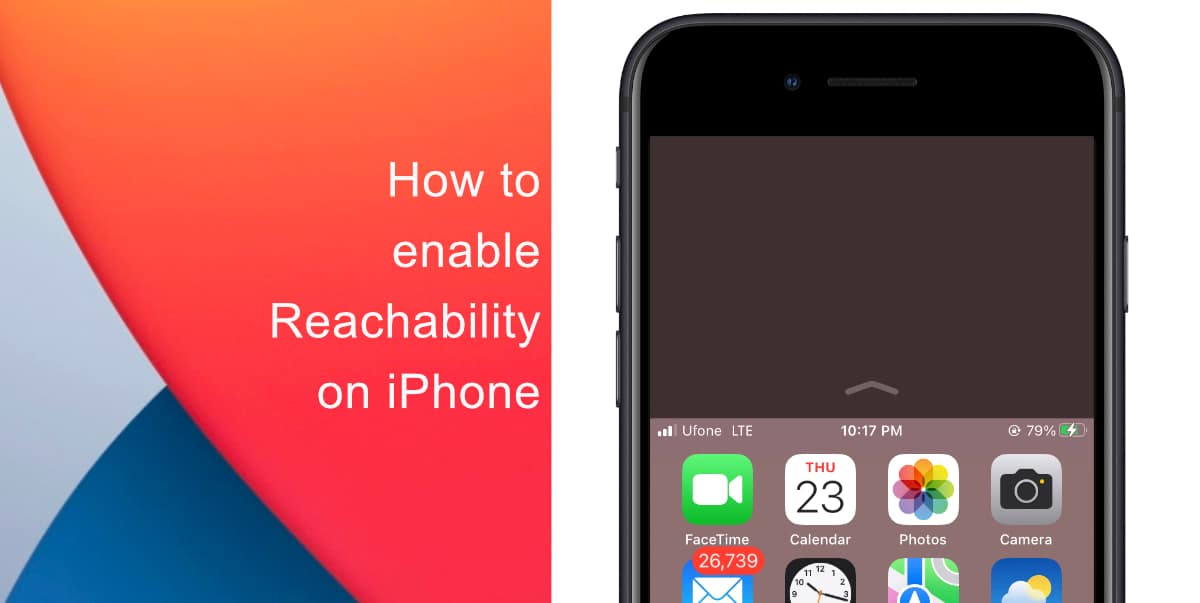
Learn how to enable Reachability on iPhone
- Launch Settings from the Home screen of your iPhone.
- Scroll down and tap Accessibility.
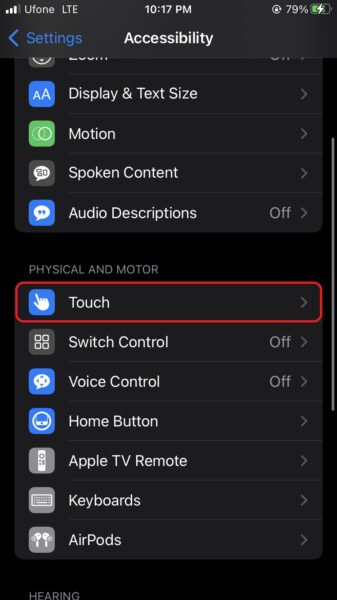
- Tap on Touch.
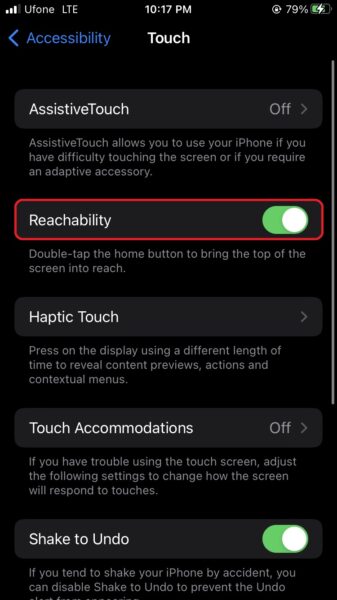
- Finally, switch the toggle for Reachability to on.
How to use Reachability on your iPhone
On an iPhone with Face ID:
- Swipe down on the bottom edge of the screen to enable the functionality.
- Swipe up on the bottom edge of the screen or tap at the blank space at the top to return to the full screen.

On an iPhone with a Home button:
- Double-tap (do not click) the Home button.
- Double-tap the Home button again or tap the blank space at the top to return to the full screen.
We hope this guide helped you learn how to enable Reachability on iPhone. If you have any questions, let us know in the comments below.
Read more:
- How to easily enable “Conversation Boost” on AirPods 2, AirPods Pro, and AirPods Max
- How to record ProRes video on iPhone 13 Pro and iPhone 13 Pro Max
- How to send expiring emails using Confidential mode in Gmail on iPhone and iPad
- How to set Gmail to delete Instead of archive in stock Mail app on iPhone & iPad
- How to clear cookies from Safari without deleting your browsing history on iPhone & iPad
- How to automatically and manually send text messages instead of iMessages on iPhone
- How to clear cookies from Safari without deleting your browsing history on iPhone & iPad
- How to use an email instead of a phone number for iMessage on iPhone & iPad
- How to turn on rain and snow notifications for your current location on iPhone