The new iOS 27 parental controls need two updates before they work. Every device in your Family Sharing group has to run iOS 27, iPadOS 27, macOS 27 Golden Gate, watchOS 27 or visionOS 27, and the group’s parental controls then have to be upgraded.
Once both updates are done, you can approve purchases and websites, limit who your child can contact and set time limits. You need to be the Family Sharing organizer or a parent or guardian in the group, and your child needs their own Apple Account in that group.

Create a Child Account Before Setting Up iOS 27 Parental Controls
- Open Settings and tap Family.
- Follow the prompts to set up your Family Sharing group if you haven’t already.
- Tap Invite Others, then tap Create Child Account if your child doesn’t already have one.
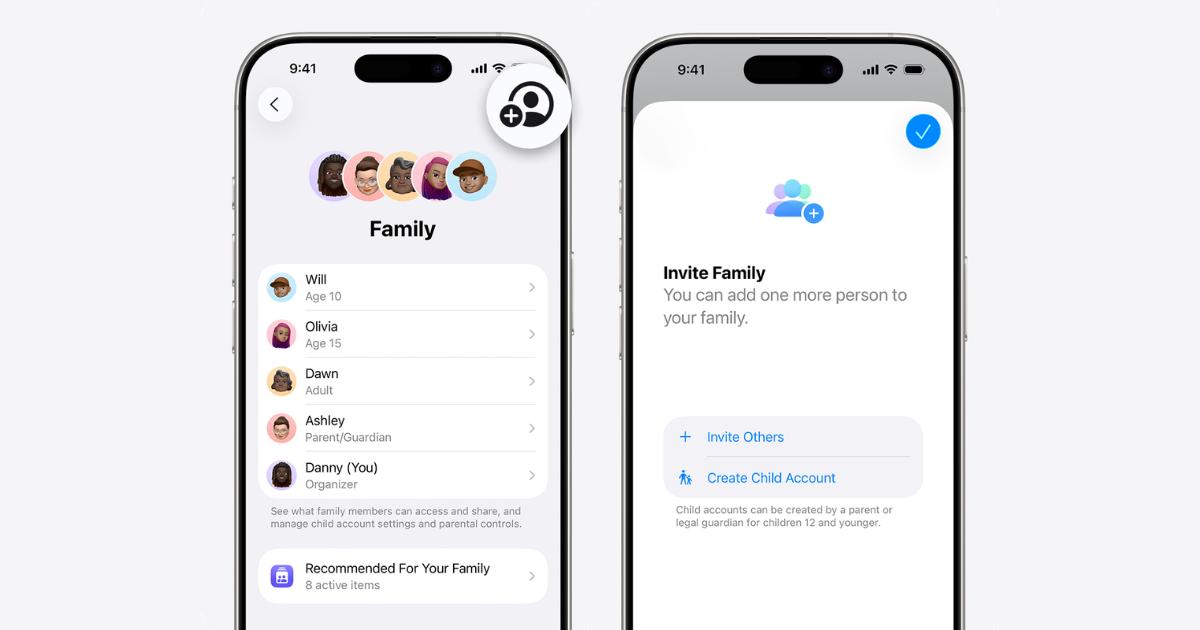
- Enter your child’s name and birth date.
- Add yourself or another parent to your child’s contacts so approval requests have somewhere to go.

Some protections turn on by default depending on your child’s age. Ask to Buy and Ask to Browse are on for children under 13, and Limit Adult Websites is on for children under 18. Where the law requires it, some of these settings can’t be turned off.
Update Every Device in Your Family Group, Then Upgrade the Controls
- Open Settings and tap Family, then tap View Family Devices to see which ones still need updating.
- On each device, go to Settings > General > Software Update and follow the prompts.
- Once your own device is updated, go to Settings > Family and tap Get Started to move the group to the new parental controls.
Ask to Browse is available only after the Screen Time upgrade. The setup for each child then walks through contacts, websites, content ratings, schedules, school hours and Time Allowances, and ends with a four-digit passcode you will need any time you change parental controls.
Turning On Ask to Buy and Ask to Browse
Open Settings > Family and tap your child’s name, then go to Apps & Websites > Restrictions. Turn on Require Purchase Approval under Ask to Buy so new purchases need your approval. If asked, enter your Screen Time passcode.

For websites, tap Filtering and choose Limit Adult Websites or Ask to Browse. Ask to Browse with Approved Websites Only means your child needs your approval to visit a new site, and it works in Safari and other supported browsers. If you don’t answer a request within 24 hours, your child has to ask again.

Time limits live in the same menu. Tap Time Allowances under your child’s name, tap the Add button and follow the prompts to set limits for categories such as Entertainment, Games and Social Media. Tap Screen Time Schedule and turn on Schedule to choose the days and hours apps are available.

The new iOS 27 parental controls also cover Communication Safety, which you turn on from Settings > Family under your child’s name and which helps protect your child from viewing or sharing photos and videos with detected nudity, gore or violence.


