Apple’s native password manager iCloud Keychain has gained a number of helpful features over the years. One of the best safety features iCloud Keychain offers is two-factor authentication for passwords. You can easily set up 2FA for supported apps and services as an added layer of security for your personal information. Here’s how.

Learn how to set up two-factor authentication for passwords on iPhone
With the release of iOS 15, Apple made two-factor authentication a native feature in its iCloud Keychain. Check out how to set up a verification code for supported apps and services below:
- Launch Settings from the Home screen of your iPhone.
- Go to Passwords.
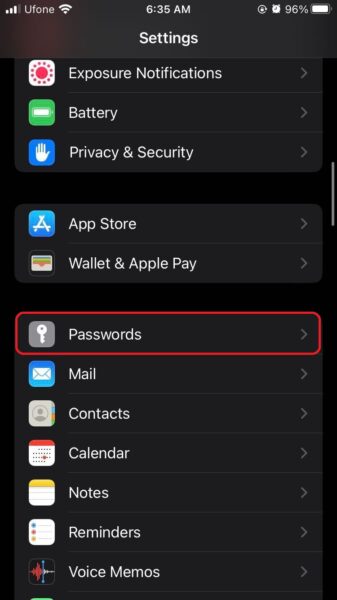
- Use Touch ID or Face ID to access your saved information.
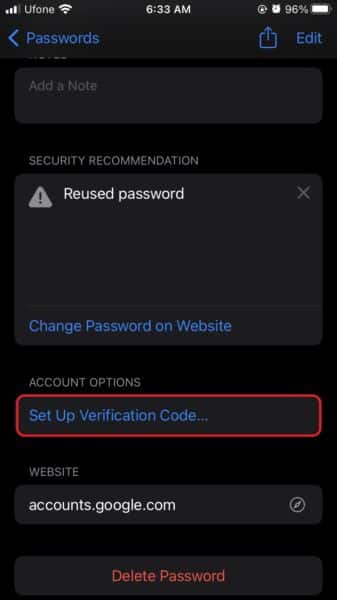
- Tap whichever app you want to set up two-factor authentication for.
- Tap Set Up Verification Code.
- Tap Setup Key or QR Code.
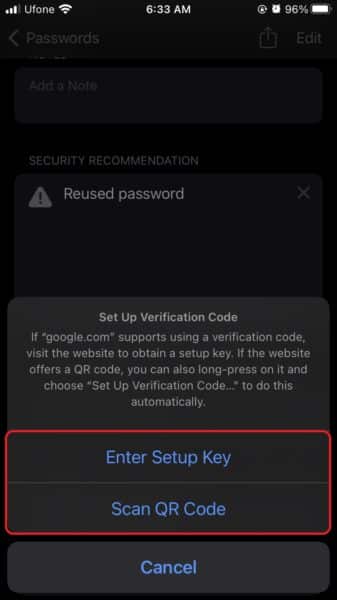
- Follow the on-screen instructions to set up two-factor authentication.


Now, whenever you sign into an app or service, you head to the Passwords menu in Settings to access the live timer and code.
We hope this guide helped you learn how to set up two-factor authentication for passwords on iPhones. If you have any questions, let us know in the comments below.
Read more:
- How to restart or force restart the iPhone 14 and iPhone 14 Pro
- Bug causing iPhone 14 Pro to freeze after data transfer? Try this Apple-approved fix
- How to turn off Always-On display on iPhone 14 Pro or iPhone 14 Pro Max
- How to convert a physical SIM to eSIM on iPhone 14
- How to use Emergency SOS via satellite on iPhone 14
- Fix “Unable to Verify Update” issue when updating to iOS 16
- iOS 16 always shows status bar text in white, here’s a fix
- How to delete duplicate photos on your iPhone with iOS 16
- How to use Live Captions in iOS 16 to transcribe any content
- Make album art larger on iOS 16 lock screen with this tip
- iOS 16 causing Wi-Fi and Bluetooth issues? Here are some fixes
- iOS 16 home screen search button can be disabled – here’s how
- iOS 16 showing Lock screen notifications at the bottom of the screen? Here’s a fix
- iOS 16 hides the iMessage voice record button behind a menu


