With iOS 16, the Photos app allows you to copy and paste photo edits from one image to multiple others, enabling batch photo editing. if you are unfamiliar with the concept of batch editing, it can be compared to applying presets to images, allowing a set of pictures to look cohesive. Now, when you are editing within the Photos app, you will not have to individually adjust the values of each image. Keep reading to learn how to batch copy and paste photo edits on your iPhone.
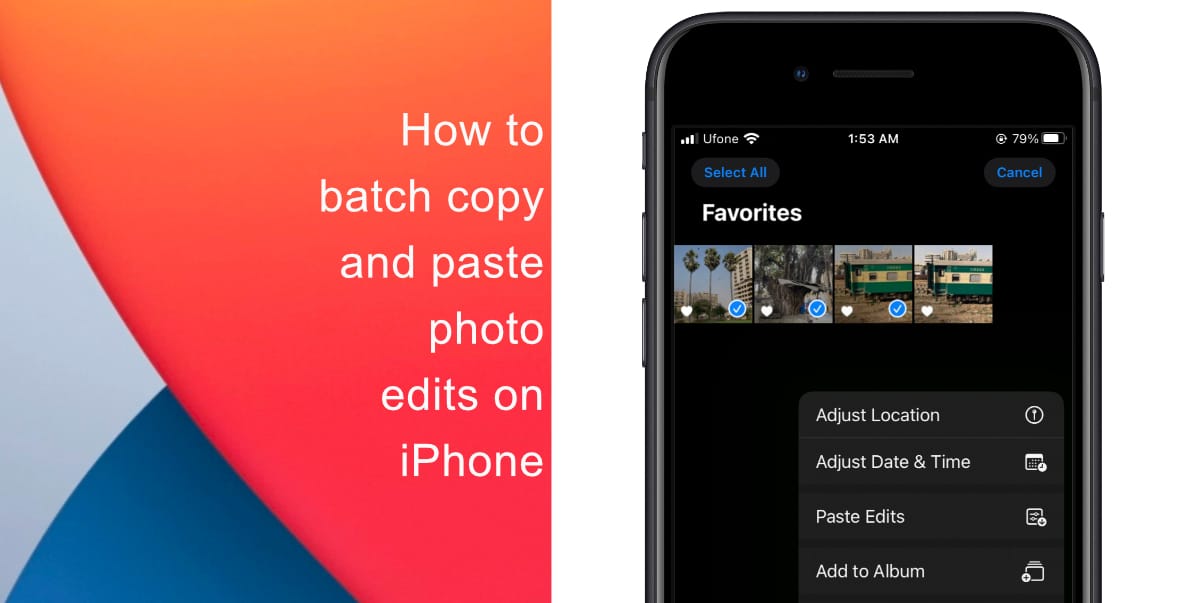
How to copy and paste photo edits on iPhone
- Launch the Photos app on your iPhone.
- Choose the image or video that needs editing. Make all required edits to your image or video.
- After making the necessary adjustments, tap Select.
 Press the (…) option and choose Copy Edits.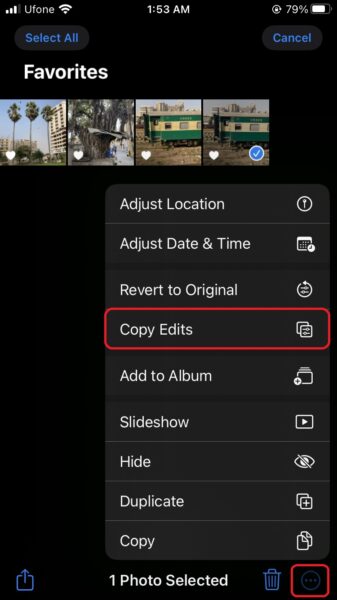
- Select the photos you wish to paste the adjustments to by tapping Select once again.
- Now select (…) from the menu.
- Choose Paste Edits from the menu.
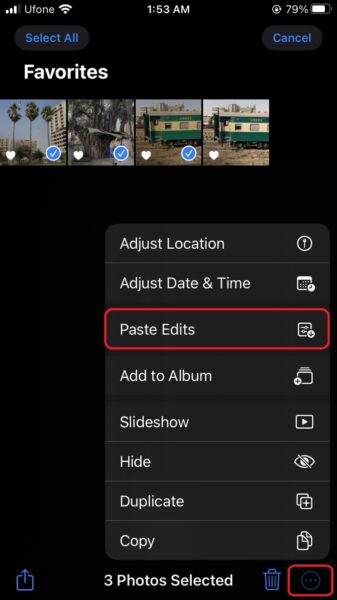
- A Pasted Edits Completed pop-up will be displayed at the bottom of the screen once the edits have been pasted to all of the chosen photos.
We hope this guide helped you learn how to copy and paste photo edits on your iPhone. If you have any questions, let us know in the comments below.
Read more:
- How to restart or force restart the iPhone 14 and iPhone 14 Pro
- Bug causing iPhone 14 Pro to freeze after data transfer? Try this Apple-approved fix
- How to turn off Always-On display on iPhone 14 Pro or iPhone 14 Pro Max
- How to convert a physical SIM to eSIM on iPhone 14
- How to use Emergency SOS via satellite on iPhone 14
- Fix “Unable to Verify Update” issue when updating to iOS 16
- iOS 16 always shows status bar text in white, here’s a fix
- How to delete duplicate photos on your iPhone with iOS 16
- How to use Live Captions in iOS 16 to transcribe any content
- Make album art larger on iOS 16 lock screen with this tip
- iOS 16 causing Wi-Fi and Bluetooth issues? Here are some fixes
- iOS 16 home screen search button can be disabled – here’s how
- iOS 16 showing Lock screen notifications at the bottom of the screen? Here’s a fix
- iOS 16 hides the iMessage voice record button behind a menu


