Apple’s latest software updates for Mac and iPad, macOS Monterey and iPadOS 15, feature a new design for Safari’s tab bar which takes up less space than before and modifies to the color of the website you are viewing. Although the colored toolbar can offer a refreshing look in some cases, you do not have to use it if you do not like it. Here is a simple guide you can follow to disable background color for Safari toolbar in macOS Monterey.

Learn how to disable background color for Safari toolbar in macOS Monterey
Here’s how to disable background color for Safari toolbar in macOS Monterey:
- Open Safari > Preferences.
- Go to the Advanced tab.
- Toggle off Show color in tab bar to show the default Safari window color which would be based on your system theme (light or dark)
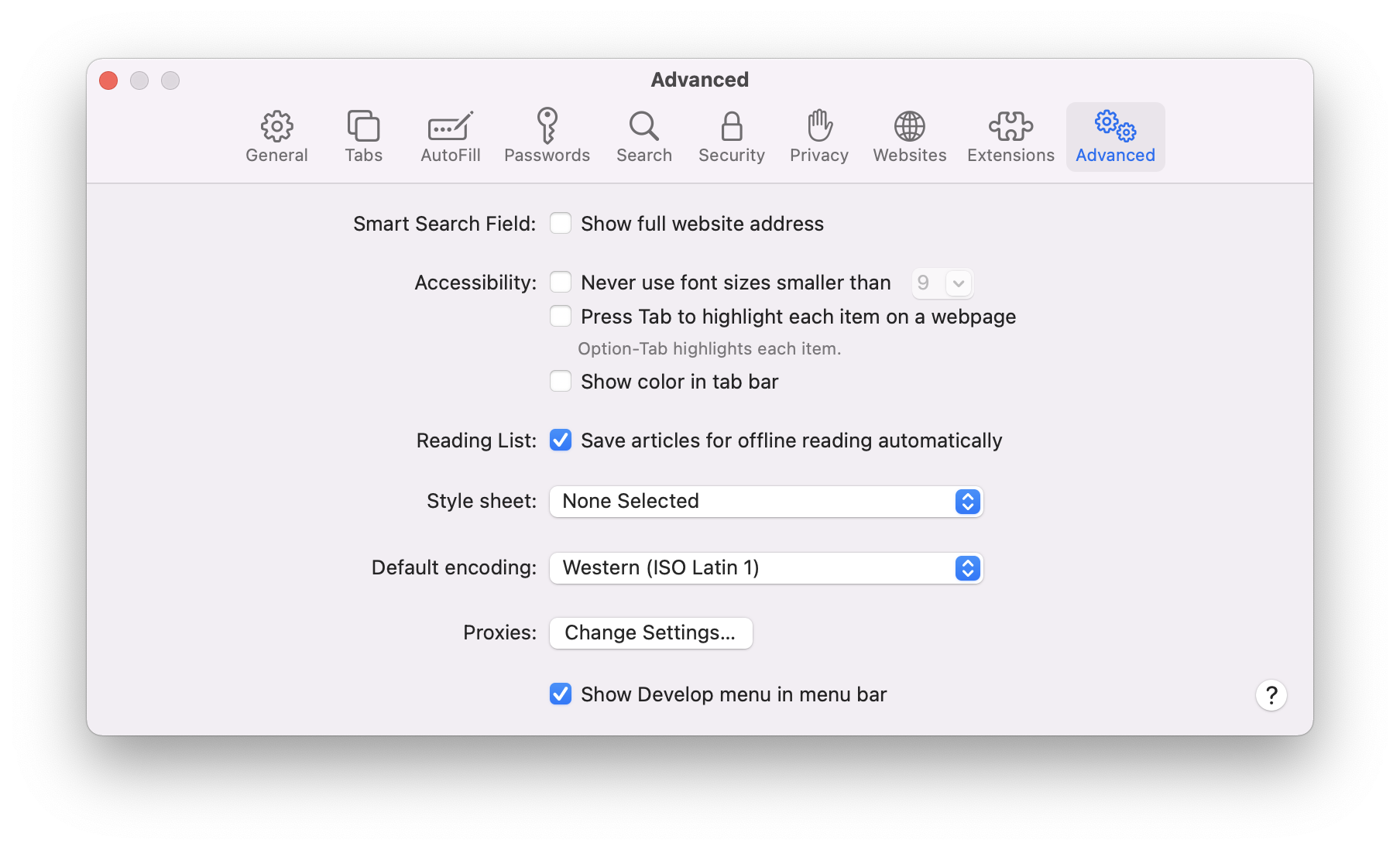

That’s it! now your Safari toolbar will not automatically adjust its colors based on whatever webpage you are viewing. Check out all the new features coming to Safari this fall in macOS Monterey here.

We hope this guide helped you learn how to disable background color for Safari toolbar in macOS Monterey. If you have any questions, let us know in the comments below.
Read more:
- How to set a music streaming service as default with Siri on iOS 14.5
- How to change iPhone alarm to your favorite song
- How to download apps larger than 200MB over cellular data on iPhone
- How to set reminders for Apple Music tracks and albums on iOS 14.5
- How to use iOS 14.5’s app tracking transparency to block apps from tracking you
- How to free iCloud storage by deleting old backups
- Found an unknown AirTag moving with you? Here is how to disable it
- How to share iPhone screenshots without saving them to Photos
- How to unlock iPhone with Apple Watch while wearing a face mask
- How to launch actions by tapping on the back of your iPhone


1 comment