With iOS 16, you can mark messages as unread so that you can reply to them at a later date when you have the time. This is especially helpful for people who open messages and forget to reply. If you mark messages as unread, an indicator will appear next to the message and the notification badge on the Messages icon will also reflect the change.

Learn how to mark messages as unread on iPhone
Before you start, make sure that your iPhone is running iOS 16. Learn how to install the latest software update here if you have not done so already. Note that the ability to mark messages as unread on iPhone for both iMessage and regular text messages.
- Open Messages on your iPhone.
- Find the message you want to mark as unread.
- Swipe to the right to access the Mark as Unread option. Repeat with as many conversations as you want.
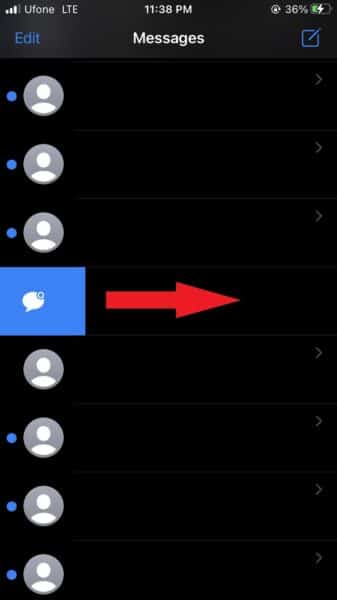

The message will now be marked as unread, displaying a blue dot to the left of the contact’s avatar. You can also swipe right on the conversation if you want to mark it as read.
We hope this guide helped you learn how to mark messages as unread on your iPhone. If you have any questions, let us know in the comments below.
Read more:
- How to remove the background of an image in Photos with iOS 16 and paste it into other apps
- Fix “Unable to Verify Update” issue when updating to iOS 16
- How to delete duplicate photos on your iPhone with iOS 16
- iOS 16 showing Lock screen notifications at the bottom of the screen? Here’s a fix
- iOS 16 hides the iMessage voice record button behind a menu
- How to edit an iMessage with iOS 16 on iPhone
- How to unsend an iMessage with iOS 16 on iPhone
- Want to enable Dark Mode on a Lock Screen wallpaper on iOS 16? Here’s how
- Third-party app widgets for iOS 16 lock screen not showing? Here’s a fix
- Battery drain after iOS 16 update? Here’s what you should do
- iPhone stuck in bootloop after iOS 16 update? Here’s a fix
- Downgrade iOS 16 to iOS 15 with these simple steps
- How to use Emergency SOS via satellite on iPhone 14


